
AI video generation has gone from a niche experiment to one of the most exciting tools in a creator's toolkit. In 2026, you can type a few sentences, or upload a single image, and get back a fully animated, high-quality video in minutes. No camera crew. No editing software. Just your imagination and the right AI model.
Whether you're a content creator looking to scale your output, a marketer building campaigns, or someone who just wants to see what AI can do, this guide covers everything you need to know to start generating AI videos with Flashloop today.
What Is AI Video Generation?
AI video generation uses deep learning models, typically diffusion models or transformer architectures, to create video content from simple inputs. There are two main approaches:
- Text-to-video, You describe a scene in natural language, and the AI generates a video from scratch. Think of it as writing a script that the AI directs, shoots, and edits for you.
- Image-to-video, You provide a still image, and the AI brings it to life with motion, camera movement, and animation. This is perfect for product photos, artwork, or any image you want to animate.
The latest generation of models, including Google's Veo 3, Kling 3.0, Seedance 1.5 Pro, and OpenAI's Sora 2, produce results that were unthinkable just a year ago. Realistic human motion, cinematic camera work, consistent physics, and creative styles that rival professional production.
Why Flashloop?
Most AI video models are locked behind individual APIs, each with their own accounts, billing, and interfaces. Flashloop brings them all together in one platform. Here's what that means for you:
- Access every major model, Veo 3, Kling 3.0, Seedance 1.5 Pro, Sora 2, and more. Try them all from one interface without managing multiple subscriptions.
- Compare results side by side, Run the same prompt through different models and pick the best output. Each model has its strengths, and Flashloop lets you find the right one for each project.
- Simple pricing, Pay for what you use with credits. No monthly minimums, no wasted subscriptions. Check our pricing page for details.
- AI images and audio too, Flashloop isn't just video. Generate AI images, voiceovers, and music to build complete content without leaving the platform.
Getting Started: Your First AI Video in 5 Minutes
Let's walk through the process step by step. By the end, you'll have your first AI-generated video ready to share.
Step 1: Create Your Free Account
Head to Flashloop's signup page and create a free account. Every new account includes starter credits so you can experiment immediately, no credit card required.
Step 2: Choose Text-to-Video or Image-to-Video
Navigate to the video creation page. You'll see two options:
- Text-to-Video, Best when you have an idea but no visual starting point. Describe the scene, mood, camera angle, and style in your prompt.
- Image-to-Video, Best when you have a specific image you want to animate. Upload a photo, illustration, or AI-generated image, then describe the motion you want.
Step 3: Pick Your AI Model
This is where Flashloop really shines. Instead of being locked into one model, you can choose the best tool for the job:
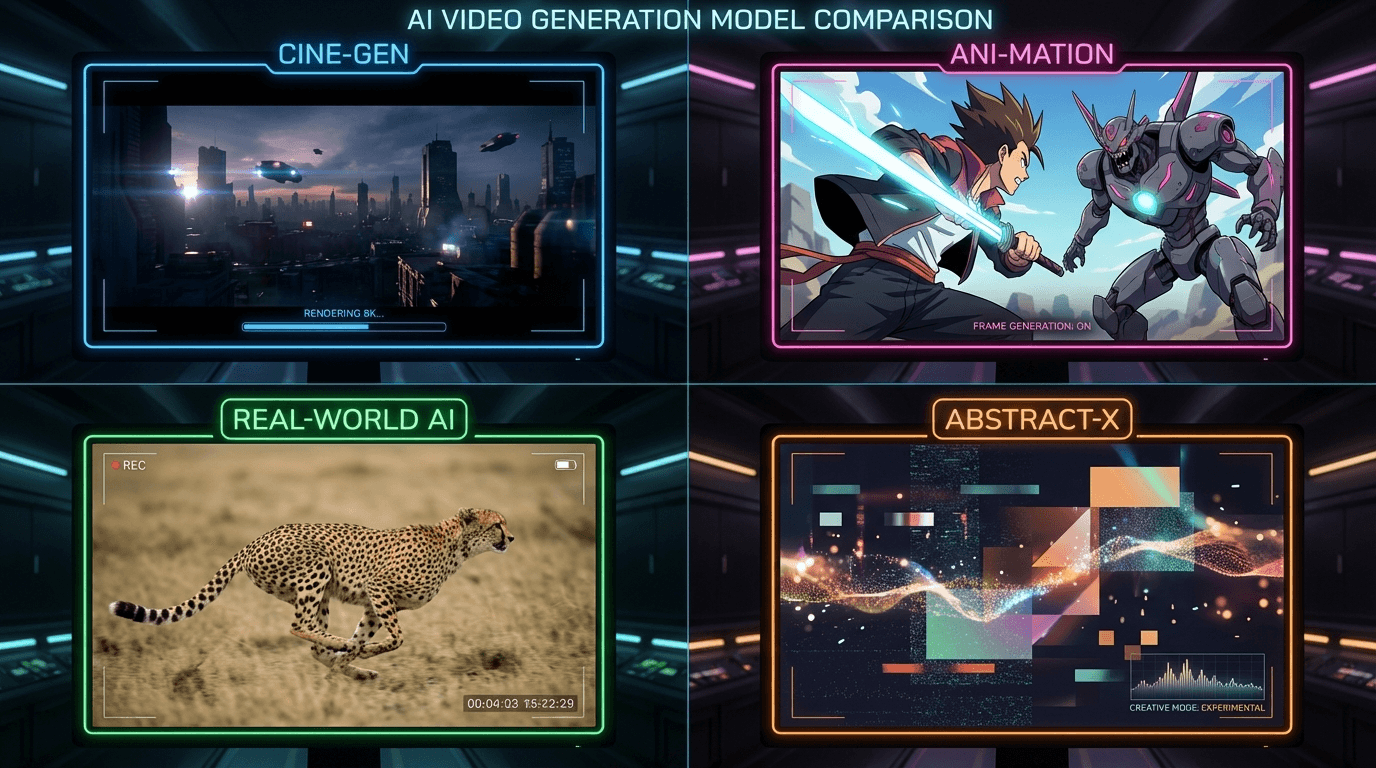
- Veo 3, Google's flagship model. Exceptional cinematic quality, natural motion, and it understands complex scene descriptions remarkably well. The go-to for professional-looking content.
- Kling 3.0, Excels at realistic human motion and complex multi-subject scenes. If your video involves people, Kling is often the best choice.
- Seedance 1.5 Pro, Outstanding for stylized and artistic content. If you want something that looks like a painting come to life or an anime sequence, Seedance delivers.
- Sora 2, OpenAI's creative powerhouse. Known for imaginative interpretations and surprising visual storytelling. Great for experimental and abstract concepts.
Pro tip: Not sure which model to pick? Start with Veo 3 for general use, it's consistently strong across most styles and subjects.
Step 4: Write a Great Prompt
Your prompt is the most important factor in the quality of your output. Here's the difference between a weak and strong prompt:
Weak: "A dog running"
Strong: "A golden retriever running through a sunlit meadow in slow motion, wildflowers blowing in the wind, cinematic shallow depth of field, warm golden hour lighting, shot on 35mm film"
The more detail you provide about the scene, lighting, camera work, and style, the better your results will be. Include information about:
- Subject, What's in the scene? Be specific about appearance, clothing, expression.
- Action, What's happening? Describe the motion clearly.
- Setting, Where does the scene take place? Interior, exterior, time of day.
- Camera, Tracking shot? Close-up? Slow zoom? Specifying the camera adds cinematic quality.
- Style, Cinematic, anime, photorealistic, watercolor? Name the aesthetic you want.
- Mood & lighting, Dramatic, warm, moody, neon-lit? Lighting can transform a scene.
Step 5: Generate and Iterate
Hit generate and wait 30 seconds to a few minutes depending on the model. Watch the result. If it's not quite right, tweak your prompt and regenerate, the iteration process is where the magic happens.
Most creators don't nail it on the first try. That's normal. Each generation teaches you what the model responds to, and you'll quickly develop an intuition for prompting.
10 Prompt Tips for Better AI Videos
After generating thousands of AI videos, here are the tips that consistently produce the best results:
- Be specific about camera movement, "Slow dolly forward" beats "camera moves." Use film terminology: pan, tilt, tracking, crane, handheld, steadicam.
- Set the lighting, "Golden hour backlighting with lens flare" creates mood. Lighting direction matters more than most people realize.
- Describe one clear action, AI models handle single coherent actions better than multi-step sequences. Keep each generation focused.
- Use style references, "In the style of a Wes Anderson film" or "Like a Studio Ghibli animation" instantly communicates an entire visual language.
- Specify resolution and quality, Add "4K, detailed, high quality" to push the model toward sharper output.
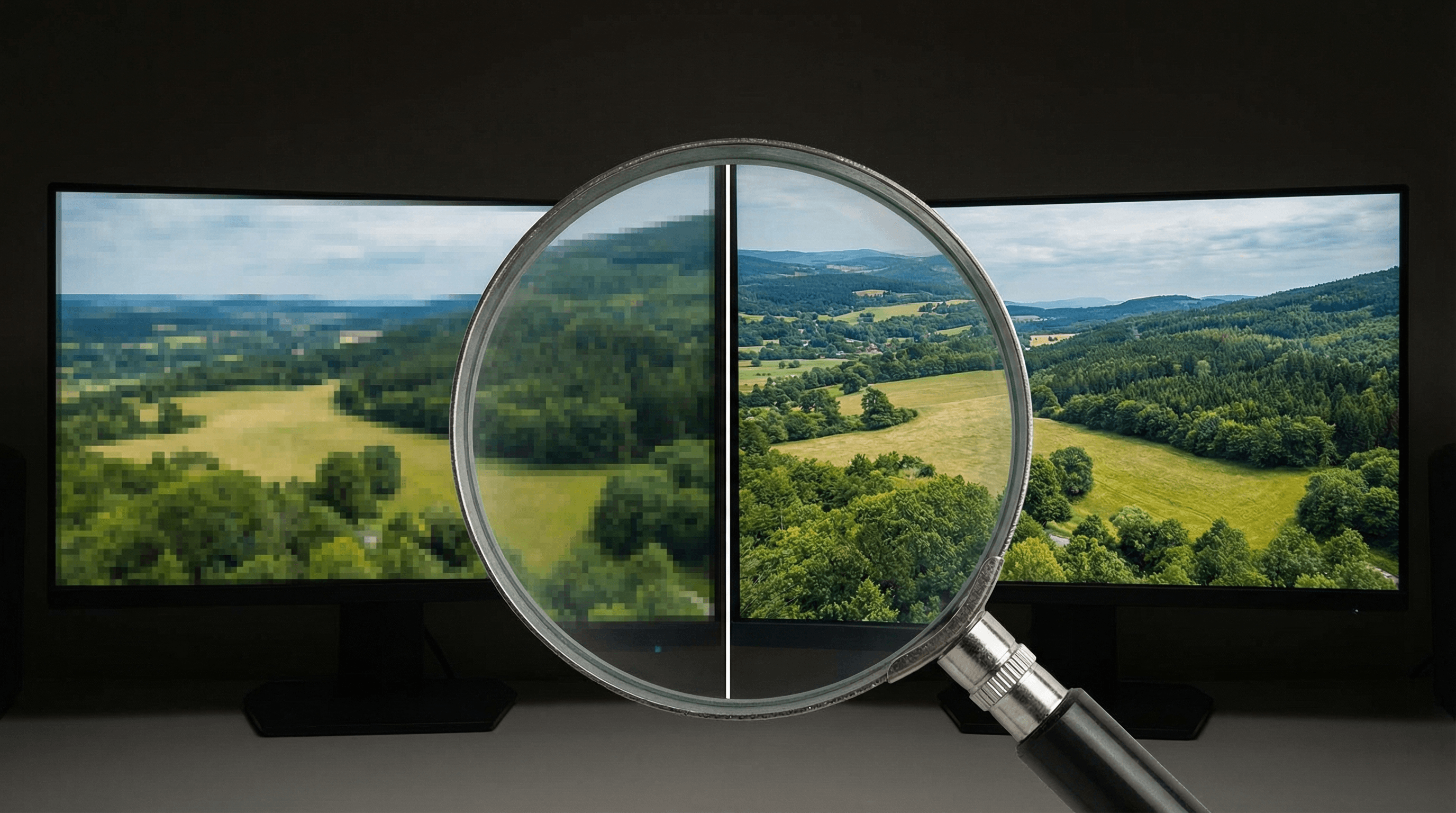
- Start with high-quality source images, For image-to-video, a sharp, well-composed input image dramatically improves results. Blurry in = blurry out.
- Experiment across models, The same prompt can look wildly different across Veo 3, Kling 3.0, and Seedance. Run comparisons.
- Keep subjects centered, AI models tend to produce the most consistent motion when the main subject is clearly centered or positioned according to the rule of thirds.
- Avoid contradictions, "A fast slow-motion scene" confuses models. Be internally consistent.
- Iterate, don't restart, When a generation is 80% right, adjust one or two words rather than rewriting the entire prompt. Small changes often have big effects.
What Can You Create with AI Video?
The applications are growing fast. Here's what creators are building with AI video generation right now:
- Social media content, Generate eye-catching short-form videos for TikTok, Instagram Reels, and YouTube Shorts in minutes instead of hours.
- Product marketing, Animate product photos, create lifestyle scenes around your products, and build entire ad campaigns without a production budget.
- Music videos and visualizers, Artists are creating entire music videos with AI, generating surreal and artistic visuals that would cost thousands to produce traditionally.
- Storyboarding and pre-visualization, Directors and producers use AI video to test shot ideas before committing to expensive real-world production.
- Educational content, Create visual explainers, animated diagrams, and engaging educational videos without animation expertise.
- Art and creative expression, Push the boundaries of what's possible with moving images. AI enables visual ideas that no traditional technique can achieve.
AI Video Generation FAQ
How long does it take to generate a video?
Most models generate a 3-5 second video clip in 30 seconds to 2 minutes. Longer or higher-resolution outputs take more time. You'll see a progress indicator in Flashloop while your video generates.
How long are AI-generated videos?
Current models typically produce clips of 3-10 seconds. For longer content, creators chain multiple clips together using video editing tools, or use Flashloop's AI to generate sequential scenes.
Can I use AI-generated videos commercially?
Yes, videos generated through Flashloop are yours to use for personal and commercial projects. Check our terms of service for full details.
What image formats work for image-to-video?
Flashloop accepts JPEG, PNG, and WebP images. For best results, use images that are at least 1024x1024 pixels with clear subjects and good lighting.
Do I need technical knowledge?
None at all. If you can write a description of what you want to see, you can generate AI videos. Flashloop handles all the technical complexity behind the scenes.
Ready to Create Your First AI Video?
The best way to learn AI video generation is to try it. Head to the video creation page, pick a model, write a prompt, and hit generate. Your first video is minutes away.
Start with the free credits included in every new account, or check out our pricing plans if you're ready to create at scale. With Flashloop, the only limit is your imagination.