
AI video upscaling is one of those tools that sounds too good to be true until you actually try it. You take a blurry, low-resolution video, run it through an AI model, and get back a sharper, higher-resolution version with details the original never had. No expensive editing suite required, no manual frame-by-frame work, and results that would've taken a professional VFX artist hours to achieve.
I've spent weeks testing every major AI upscaling tool on the market, from free browser-based options to professional desktop software. This guide covers what AI video upscaling actually is, when you need it, how to do it step by step, and which tools deliver the best results for different budgets.
What Is AI Video Upscaling?
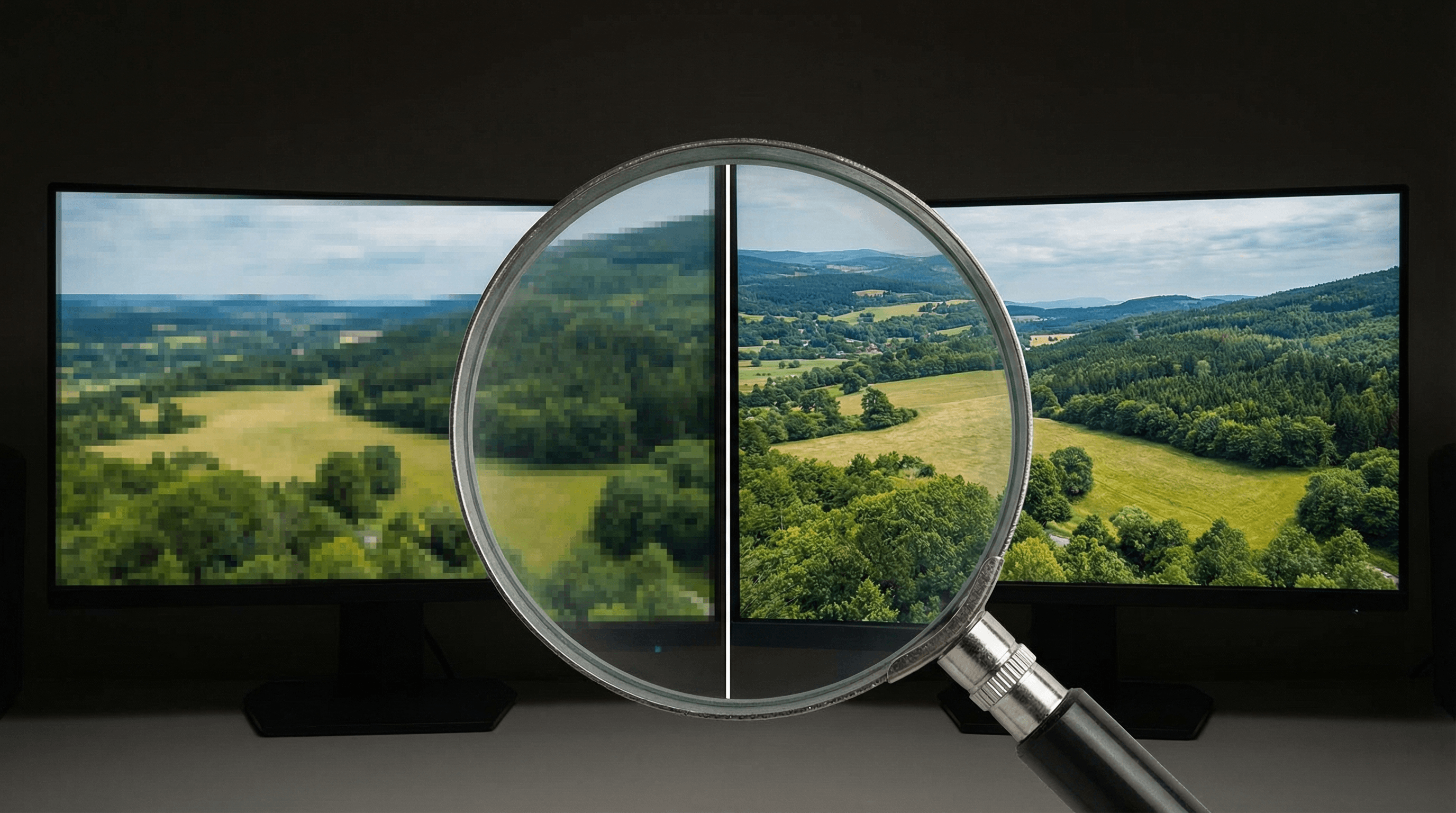
Traditional upscaling just stretches pixels. You take a 480p video, scale it to 1080p, and get a blurry mess because the software is simply making existing pixels bigger. There's no new detail being added.
AI video upscaling is fundamentally different. Machine learning models trained on millions of high-resolution video frames learn to predict what missing detail should look like. When you feed them a low-res video, they don't just stretch pixels. They analyze edges, textures, faces, and objects, then intelligently generate new pixel data that makes the video look like it was originally shot at a higher resolution.
The results vary by tool and source material, but the best AI upscalers can take a 480p clip and produce a 4K version that looks genuinely sharp. Faces become clearer, text becomes readable, and fine details like hair and fabric textures emerge where there were just blobs before.
When Do You Need AI Video Upscaling?
Not every video needs upscaling. Here are the scenarios where it makes a real difference:
- Old family footage. VHS tapes, early digital camera videos, and old phone recordings that captured memories in 320p or 480p. AI upscaling can bring these back to life.
- Phone videos shot in low light. Your phone drops resolution and adds noise in dark environments. Upscaling combined with denoising fixes both problems.
- Screen recordings and tutorials. If you recorded a screencast at 720p and now need it at 1080p or 4K for a professional presentation, AI upscaling handles it cleanly.
- Social media repurposing. You downloaded a compressed video from Instagram or TikTok and want to reuse it at higher quality for YouTube or a website.
- Surveillance and security footage. CCTV cameras often record at very low resolutions. Upscaling can make faces and license plates more readable.
- AI-generated video. Some AI video generators output at lower resolutions. Upscaling is the final step to get production-ready quality.
- Archival and restoration. Old film transfers, historical footage, and vintage content that deserves to be seen in modern resolution.
Resolution Comparison: What to Expect
Here's a realistic look at what AI upscaling can achieve at different starting resolutions:
- 360p → 1080p (3x): Noticeable improvement. Details sharpen, but don't expect miracles. Fine text may still be unreadable. Faces become clearer but not perfectly sharp.
- 480p → 1080p (2.25x): This is the sweet spot. Results look genuinely good. Most viewers wouldn't guess the original was 480p. Faces, textures, and edges all benefit significantly.
- 720p → 1080p (1.5x): Subtle but worthwhile. The video looks crisper, especially on larger screens. Great for making older HD content feel modern.
- 720p → 4K (3x): Impressive results with good source material. The AI has enough data to work with and generates convincing detail.
- 1080p → 4K (2x): Clean upgrade. Excellent for content destined for large displays, TV screens, or high-end presentations.
The general rule: the more data the AI starts with, the better the output. A clean 720p source upscales beautifully. A heavily compressed 240p clip will improve but still show limitations.
How to Upscale Video with AI: Step by Step
Here's the workflow I use. The specific steps vary slightly by tool, but this process applies to most AI upscalers.
Step 1: Assess Your Source Video
Before upscaling, check your source video's resolution, bitrate, and compression level. Right-click the file and check properties, or use a tool like MediaInfo. Videos with heavy compression artifacts (blocky patches, color banding) will need denoising before or during upscaling. Most good AI upscalers include denoising as a built-in option.
Step 2: Choose Your Target Resolution
Don't always go for maximum. Upscaling 480p to 4K uses more processing time and file storage than 480p to 1080p, and the quality difference isn't always worth it. A good rule of thumb: upscale by 2x to 4x maximum. Beyond 4x, even the best AI starts hallucinating details that look unnatural.
Step 3: Select Your Upscaling Tool
I cover the best options in detail below. For quick recommendations: use Flashloop for browser-based convenience, Topaz Video AI for maximum quality on desktop, or DaVinci Resolve for a free professional option.
Step 4: Configure Settings
Most AI upscalers let you adjust these parameters:
- AI model/preset: Many tools offer different models optimized for faces, animation, general footage, or old film. Pick the one that matches your content.
- Denoising strength: Higher values remove more grain and compression artifacts but can also soften fine detail. Start at medium and adjust.
- Sharpening: A light sharpen pass after upscaling can add crispness, but too much creates halos around edges.
- Output format: H.264 for compatibility, H.265 for better quality at smaller file sizes, ProRes for editing workflows.
Step 5: Process and Review
Run the upscale on a short test clip first (10-15 seconds) before processing the entire video. This saves hours if you need to tweak settings. Compare the original and upscaled versions side by side, paying attention to faces, text, and fine textures.
Best Free AI Video Upscaling Tools
Flashloop
Flashloop's video tools include AI upscaling alongside its generation features. The advantage here is convenience: everything runs in the browser, no software to install, and you can upscale videos on any device. The free tier includes upscaling credits, making it a great starting point for occasional use. If you're already using Flashloop for image-to-video generation, upscaling is a natural next step in the same workflow.
DaVinci Resolve (Free)
Blackmagic's DaVinci Resolve is a full professional editing suite that's genuinely free for the base version. Its Super Scale feature uses AI to upscale footage up to 4x. The quality is excellent, especially for live-action footage. The trade-off is that it's a complex application with a steep learning curve, and processing happens on your GPU, so you need decent hardware.
CapCut
CapCut includes a basic AI upscaling feature in its desktop and mobile apps. It's not as powerful as dedicated upscaling tools, but for quick social media content enhancement, it gets the job done. Free to use, easy to access, and you're probably already using it for editing anyway.
Waifu2x / Real-ESRGAN (Open Source)
For the technically inclined, open-source models like Real-ESRGAN and its derivatives offer high-quality upscaling for free. You'll need to run them locally (Python and a GPU), but the results rival paid tools. Real-ESRGAN is particularly good for animation and illustrated content.
Best Paid AI Video Upscaling Tools
Topaz Video AI
This is the gold standard for desktop AI video upscaling. Topaz Video AI offers multiple AI models optimized for different content types (faces, motion, grain removal, interlace fixing) and consistently produces the best output quality in head-to-head comparisons. It's a one-time purchase (around $200), which makes it cost-effective for regular use. Processing runs locally on your GPU, so you need a capable graphics card.
Adobe Premiere Pro (Enhance Speech / Super Resolution)
Adobe has been adding AI upscaling features to Premiere Pro as part of their AI toolkit. If you're already in the Adobe ecosystem, this keeps everything in one workflow. The quality is good but not quite at Topaz levels for pure upscaling. Best suited for editors who need upscaling as part of a larger editing pipeline.
Pixop
Pixop is a cloud-based professional upscaling service aimed at broadcast and film. It's expensive but produces broadcast-ready output and handles large volumes. If you're upscaling content for TV or commercial distribution, Pixop is worth evaluating.
Tips for the Best Upscaling Results
- Start with the highest quality source available. If you have the original file, use that instead of a compressed copy downloaded from social media. Every generation of compression loses data that AI can't recover.
- Denoise before or during upscaling. Compression artifacts and grain get amplified during upscaling. Removing them first produces much cleaner results.
- Match the AI model to your content type. Face models for talking heads, general models for landscapes, animation models for cartoons. Using the wrong model produces worse results than using a generic one.
- Don't over-sharpen. It's tempting to crank sharpening to make the upscaled video look extra crisp, but this creates ugly halos and an unnatural "AI-processed" look. Subtle sharpening looks more natural.
- Process in segments for long videos. Upscaling a 2-hour video in one go risks crashes and makes it impossible to adjust settings midway. Split into 10-15 minute chunks.
- Check the output on multiple screens. Upscaling artifacts that are invisible on a small monitor can be obvious on a large TV or projector. Always preview on the target display.
FAQ
Can AI really improve video quality?
Yes, and the results are genuinely impressive in 2026. AI upscaling doesn't just stretch pixels. It generates new detail based on learned patterns from millions of high-resolution videos. The output is significantly sharper and more detailed than traditional upscaling methods.
Is AI video upscaling free?
Several excellent options are free. Flashloop's free tier includes upscaling credits, DaVinci Resolve's Super Scale is completely free, and open-source tools like Real-ESRGAN cost nothing if you can run them locally. For heavy or professional use, paid tools like Topaz Video AI offer more features and convenience.
How long does AI video upscaling take?
It depends on the tool, your hardware, and the video length. Cloud-based tools like Flashloop process a 30-second clip in a few minutes. Desktop tools like Topaz Video AI take 2-10x the video duration depending on your GPU. A 5-minute 480p video upscaled to 4K might take 15-50 minutes on a modern GPU.
What's the best resolution to upscale to?
1080p is the practical sweet spot for most content. It looks great on all screens and doesn't create massive file sizes. Upscale to 4K only if you're targeting large displays, TV output, or professional distribution. Going beyond 4K from low-res sources rarely adds meaningful quality.
Can I upscale AI-generated videos?
Absolutely. Many AI video generators output at 720p or 1080p. Running the output through an AI upscaler to reach 4K is a common final step in professional AI video workflows. The results are excellent because AI-generated video tends to have clean edges and consistent textures that upscalers handle well.
Want to create videos from scratch before upscaling? Learn how to turn images into video with AI or explore Flashloop's video generator to get started.