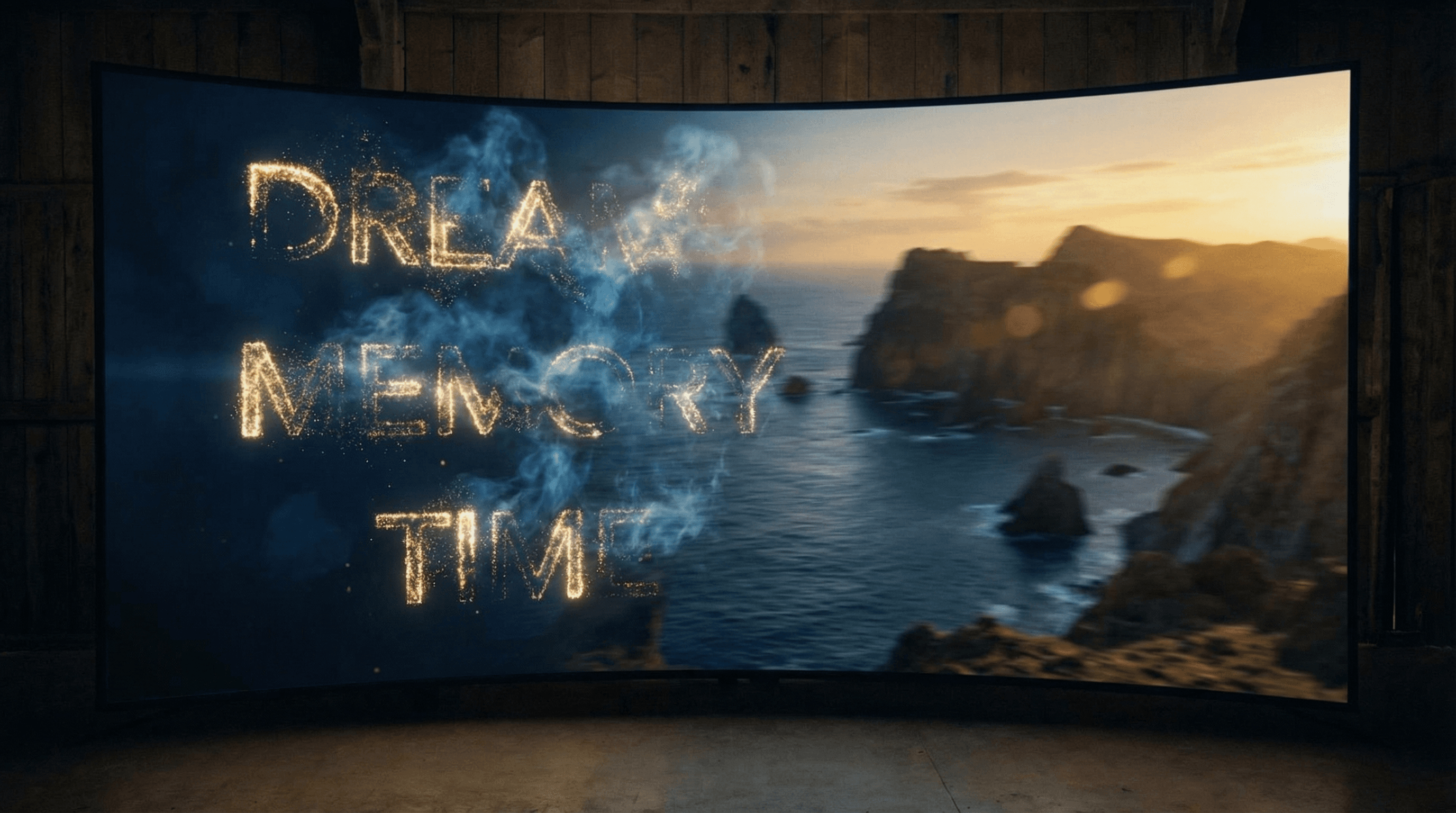

Text-to-video AI lets you type a description and get back a fully rendered video clip, no camera, no footage, no editing timeline. You write something like "a golden retriever running through a field of wildflowers at sunset, slow motion" and the AI generates a 5-10 second clip that looks like it was shot by a professional crew.
This technology has exploded in 2026. Models like Kling 3.0, Veo 3.1, and Sora 2 are producing clips that are genuinely hard to distinguish from real footage. Whether you're a content creator, marketer, or just someone who wants to bring ideas to life, text-to-video AI is the fastest path from concept to visual.
This guide covers everything: how text-to-video works under the hood, a step-by-step walkthrough using Flashloop, the best models available right now, prompt engineering tips that actually make a difference, and the mistakes most beginners make.
What Is Text-to-Video AI?
Text-to-video AI is a category of generative AI models that take a written prompt as input and produce a video clip as output. Unlike image-to-video AI, where you start with a photo, text-to-video creates everything from scratch, the scene, the subjects, the lighting, the motion, the camera movement.
The output is typically 3-10 seconds long, though newer models are pushing toward 15-30 second clips. You can control what happens in the scene through your prompt: describe the subject, the environment, the action, the camera angle, and the mood. The more specific you are, the closer the result matches your vision.
Text-to-video is ideal when you don't have source material to work with. Need a shot of an astronaut walking on Mars? A macro close-up of coffee being poured in slow motion? A fantasy castle emerging from fog? Just describe it.
How Text-to-Video AI Works
Modern text-to-video models are built on diffusion transformers, the same architecture behind the best image generators but extended into the time dimension. Here's the simplified version:
- Text encoding, your prompt gets converted into a numerical representation that captures the meaning and relationships between every word
- Noise-to-video generation, the model starts with random noise and gradually refines it into coherent video frames, guided by your text embedding
- Temporal consistency, the model ensures that objects stay consistent across frames, physics look natural, and motion flows smoothly from one frame to the next
- Upscaling and decoding, the final frames get decoded from the model's compressed representation into full-resolution video pixels
The hardest part is temporal consistency. Generating a single good image is relatively solved, but generating 150 frames where everything stays coherent is a much harder problem. That's why the best text-to-video models require massive compute and why quality varies so much between providers.
Step-by-Step: Generate a Video From Text Using Flashloop
Let's walk through the actual process. I'll use Flashloop's video generator because it gives you access to multiple text-to-video models from a single interface, no need to juggle separate accounts.
Step 1: Open the Video Generator
Head to the video creation page. You'll see a text input area and a model selector. Make sure the input mode is set to "Text to Video" (not image-to-video).
Step 2: Choose Your Model
Flashloop offers several text-to-video models. Each has different strengths, I'll break them down in detail below. For your first generation, Kling 3.0 is a solid all-rounder with fast generation times.
Step 3: Write Your Prompt
This is where the magic happens. Describe what you want to see, how the camera should move, and the overall mood. Be specific. Instead of "a cat," try:
A fluffy orange tabby cat sitting on a windowsill, golden hour sunlight streaming in from the left, dust particles floating in the light, the cat slowly turns its head toward the camera, shallow depth of field, cinematic 4K.
Step 4: Set Parameters
Depending on the model, you can adjust duration (5s or 10s), aspect ratio (16:9, 9:16, or 1:1), and resolution. For social media content, 9:16 vertical works best. For YouTube or presentations, go with 16:9.
Step 5: Generate and Iterate
Hit generate and wait for the result. Generation times vary by model, anywhere from 30 seconds to a few minutes. If the first result isn't perfect, tweak your prompt and try again. AI video generation is iterative; even experienced users rarely nail it on the first try.
Best Models for Text-to-Video in 2026
Not all text-to-video models are created equal. Here's how the top three stack up based on my testing. For a deeper comparison of all available options, check our AI video generator comparison.
Kling 3.0
Kling 3.0 from Kuaishou is the current sweet spot for most users. It produces high-quality clips with excellent motion coherence, handles complex scenes with multiple subjects well, and generates quickly. The physics simulation is noticeably better than its predecessors, water flows correctly, fabric drapes naturally, and lighting stays consistent across frames.
- Best for: general-purpose generation, fast turnaround
- Duration: up to 10 seconds
- Standout feature: excellent prompt adherence for action sequences
Veo 3.1
Google's Veo 3.1 is the quality king. It produces the most photorealistic output of any text-to-video model currently available. Skin textures, reflections, atmospheric effects, everything looks a step above the competition. The trade-off is that generation takes longer and costs more credits.
- Best for: photorealistic scenes, cinematic quality
- Duration: up to 8 seconds
- Standout feature: unmatched visual fidelity and lighting
Sora 2
OpenAI's Sora 2 excels at creative and stylized content. It handles abstract concepts, artistic styles, and unusual scene compositions better than most competitors. If you're making something surreal, fantastical, or heavily stylized, Sora 2 often produces the most interesting results.
- Best for: creative/artistic content, stylized looks
- Duration: up to 10 seconds
- Standout feature: handles abstract and fantastical prompts well
Prompt Engineering Tips for Text-to-Video
Your prompt is the single biggest factor in output quality. A vague prompt gives vague results. Here's what actually works:
1. Describe the Scene, Then the Action, Then the Camera
Structure your prompt in three layers: what the scene looks like (setting, lighting, mood), what happens (the action or motion), and how the camera behaves (angle, movement, focus). This gives the model clear priorities.
A neon-lit Tokyo alley at night, rain puddles reflecting pink and blue signs. A woman in a leather jacket walks toward the camera. Slow dolly shot, shallow depth of field, anamorphic lens flare.
2. Use Cinematic Vocabulary
Text-to-video models respond well to filmmaking terms. Words like "dolly shot," "tracking shot," "crane shot," "shallow depth of field," "golden hour," and "anamorphic" produce noticeably better results than generic descriptions. The models were trained on film data and understand these terms.
3. Specify the Duration Feel
If you want slow, contemplative motion, say "slow motion" or "gentle movement." If you want fast action, say "quick cuts" or "fast-paced." The model needs to know the energy level of your clip.
4. Avoid Contradictions
Don't ask for "a close-up wide-angle shot" or "a bright dark scene." Contradictory instructions confuse the model and produce muddled results. Pick one direction and commit to it.
5. Iterate on What Works
When you get a result you like, save that prompt and make small variations. Swap out the subject, change the location, adjust the camera movement. Building a library of proven prompts is more efficient than starting from scratch every time.
Common Mistakes to Avoid
After generating hundreds of text-to-video clips, here are the pitfalls I see most often:
- Prompts that are too short, "a dog running" gives the model almost nothing to work with. Add environment, lighting, camera angle, and mood.
- Overloading with too many subjects, asking for five people doing different things in one scene usually produces chaos. Keep it to 1-2 main subjects for best results.
- Ignoring aspect ratio, vertical content for TikTok needs 9:16. Generating in 16:9 and cropping later wastes half the frame and looks off.
- Expecting dialogue or lip sync, current text-to-video models don't handle speaking characters well. Plan to add voiceover in post-production instead.
- Not iterating, generating once and giving up if it's not perfect. The best results usually come on the 2nd or 3rd attempt after refining the prompt.
Free vs. Paid Text-to-Video Options
Most text-to-video platforms operate on a credits or subscription model. Here's the realistic breakdown:
- Free tiers, most platforms (including Flashloop) offer a handful of free generations so you can test quality before committing. Expect watermarks or lower resolution on some services.
- Pay-as-you-go, buy credits and use them across different models. Good if you generate videos occasionally. On Flashloop, this lets you pick the best model per project without a monthly commitment.
- Subscriptions, monthly plans with bundled credits. Better value if you're generating multiple videos per week. Check the Flashloop pricing page for current plans.
The free options are fine for experimentation, but if you're producing content for social media or professional use, a paid plan gives you access to the highest-quality models and faster generation times.
Wrapping Up
Text-to-video AI has reached the point where anyone with a clear idea and a well-written prompt can produce video content that used to require a production team. The technology isn't perfect, you'll still see the occasional weird hand or physics glitch, but the best models are improving every few months.
The key is to start generating. Write a prompt, pick a model, see what comes out, and refine. The more you use these tools, the better your intuition gets for what works. Head to the Flashloop video generator and turn your first text prompt into a video clip. It takes less than a minute.